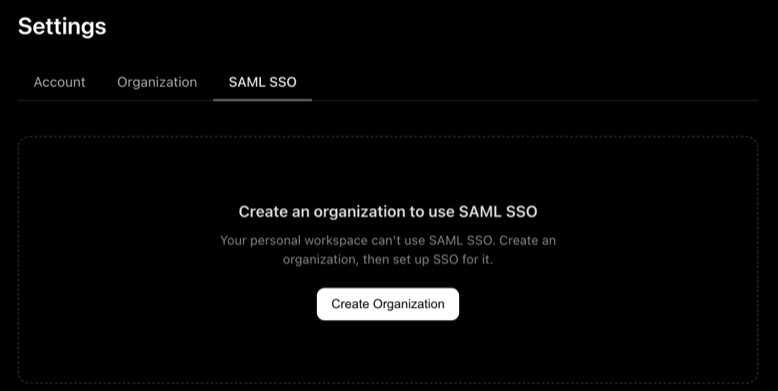
SAML SSO
SAML single sign-on lets the members of your organization sign in to Mobile Next Cloud through your company's identity provider, such as Okta, Microsoft Entra ID or Google Workspace.
SAML SSO is available on Enterprise. It is not enabled for an organization by default: contact support to enable it.
Enable SAML SSO
- In the web app, open Settings and choose the SAML SSO tab.
- Choose Contact support and tell us which identity provider you use.
Until support enables SSO, every field on the tab is disabled.
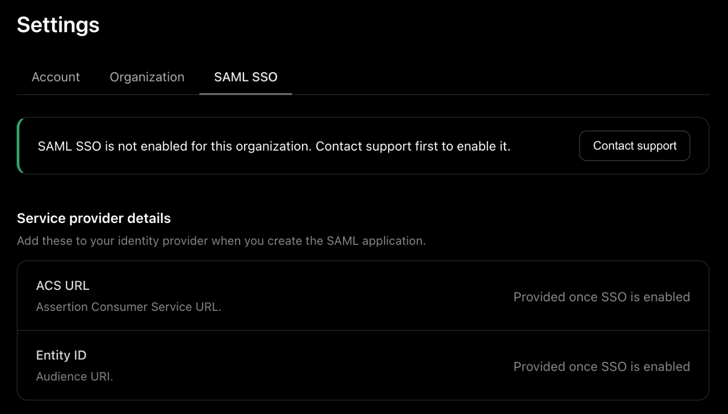
The SAML SSO tab
Service provider details are the values you add to your identity provider when you create the SAML application for Mobile Next:
- ACS URL: the Assertion Consumer Service URL.
- Entity ID: the audience URI.
Both are shown once SSO is enabled for your organization.
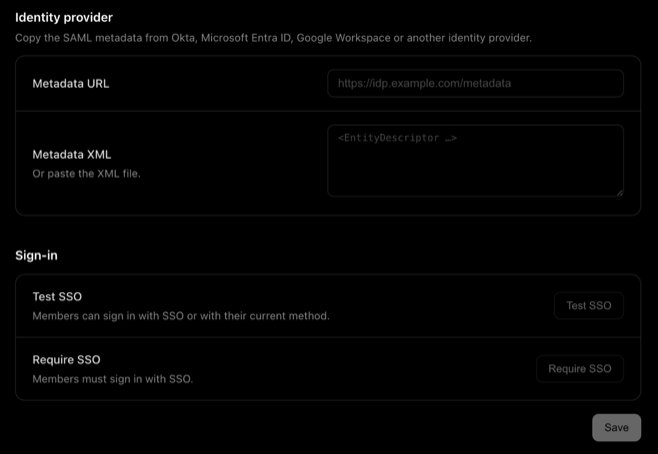
Identity provider is where you give Mobile Next your identity provider's SAML metadata: either its Metadata URL, or the Metadata XML file pasted in.
Sign-in sets how members sign in:
- Test SSO: members can sign in with SSO or with their current method.
- Require SSO: members must sign in with SSO.
Personal workspaces
A personal workspace can't use SAML SSO. Create an organization first, then set up SSO for it.